Super Nintendo Online!
Verfasst: 8. Oktober 2015, 21:43

Hello you all from here.
If you like Super Nintendo, and would like to play with someone through the internet, i invite you to play Super Nintendo Online together using Z-Net: http://emu.z-net.us
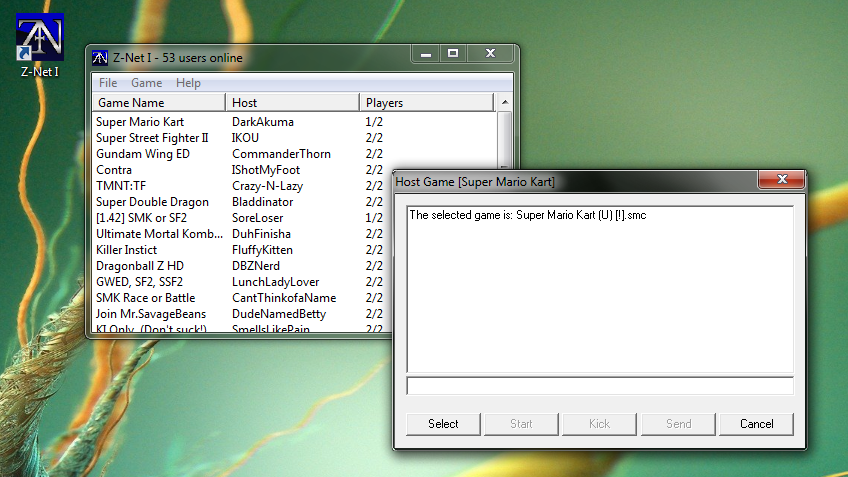
When you download and setup everything as i will list below, you can play every game to the end with minimum or no lag (Just make sure you have nothing using your internet, specially your upload).
What do i need to start playing?
Basically 3 things:
1 - Super Nintendo Emulator (Zsnes)
2 - Z-Net program, to create rooms, joining rooms, and making the connection to play through the emulator
3 - Do a quick setup in your modem/router to allow the emulator connection to work.
its easy and simple, but as they need to be configured manually for the first time, it seems hard, but it's really easy. Just follow all the steps:
1 - Download and install Z-Net I v1.2 BETA - Recommended
2 - Download Emulator ZSNES v1.42 (Compatibility) put it in a new folder and create a folder inside it called "Roms"
Obs.: Only open the emulator to change the controls (use Input 1) and to change the resolution (if you want), thats all. Don't mess with anything else.
3 - Open Z-Net, go to File, Options, then configure the paths for zsnesw (emulator) and Roms (Games) Folder. When ready to start playing, you will be selecting the roms inside the Z-Net, when creating a room, and the emulator (Zsnes) is automatically opened as you press Start.
4 - The most important and the only hard part (but can be really easy if you pay attention) is to open Ports inside your modem/router:
Modem/Router Part:
Ports are a way to make connection for some programs. Most programs that uses Ports can setup it automatically inside your modem/router (Like Skype). But in this case you need to do it manually. It has no harm or anything that will cause problem to you.
All you need is to know how to enter inside your modem/router configurations, your local IP (the ip your modem provide to your PC) and to find the place to add Ports inside the Modem.
1 - You can know those things searching your modem/router model here: http://portforward.com/english/routers/ ... rindex.htm
2 - To know your local IP: Press Windows + R, type "cmd", Ok, type "ipconfig", enter, and look for the ip at IPv4 line
3 - When searching in portforward.com, choose any Program like "1 vs. 100 Xbox 360" (the options just means a different number of the Port), But the number of the Ports you need to Open are 7845 as TCP and UDP, and 4000 as TCP
When done, it should look like this:

After that, just Create a room and wait for someone to enter, or join a room, you can download the roms from hosts too.
If you are a host, just leave the option "Disallow download" unselected.
And some things you should know:
- Please try to use a fixed name in Z-Net for people to recognize each other
- Don't need to leave the emulator opened, the Z-Net will open it and do the rest to connect.
- Do not rename the Roms!
- You can check if Ports 7845 and 4000 are working using "/portcheck" command inside game rooms in Z-Net
- Only hosts should press Esc
- Only press Esc if really needed, like to put Latency to 1 (it reduces the delay)
- Pressing Esc while playing may cause the second player to lose synchronization with host, and it will seems like he is acting strange
- Close any program that may be using your upload traffic (Torrent, Other online games, and other online programs if you can)
- Disable any firewall and/or antivirus that may be blocking the ports or the connection to play.
- Do not use fast forward button.
- Don't play doing alt tab, it can accumulate lag and delay.
- To talk while playing press "T"
- Save the game using normal save (the save of the game itself, not "save state")
- Close the emulator after finishing playing a game
Z-net FAQ
If you have any questions, go to Z-Net official chat and ask for help: Z-Net Chat